Features
This page walks through the app, page by page. Everything described here works offline. The few actions that need outside help, such as document conversion, AI and sync, say so where they come up.
Courses and chapters
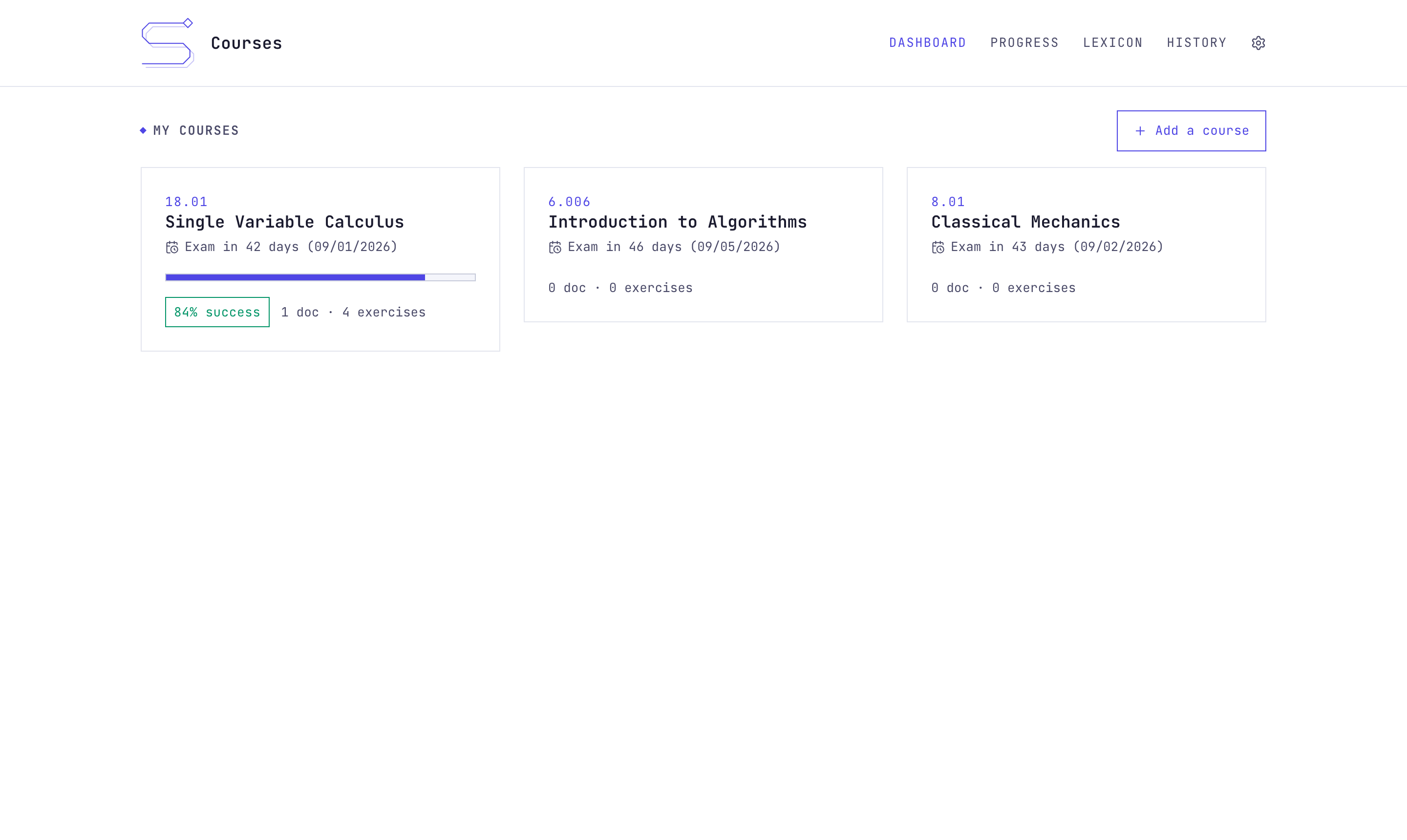
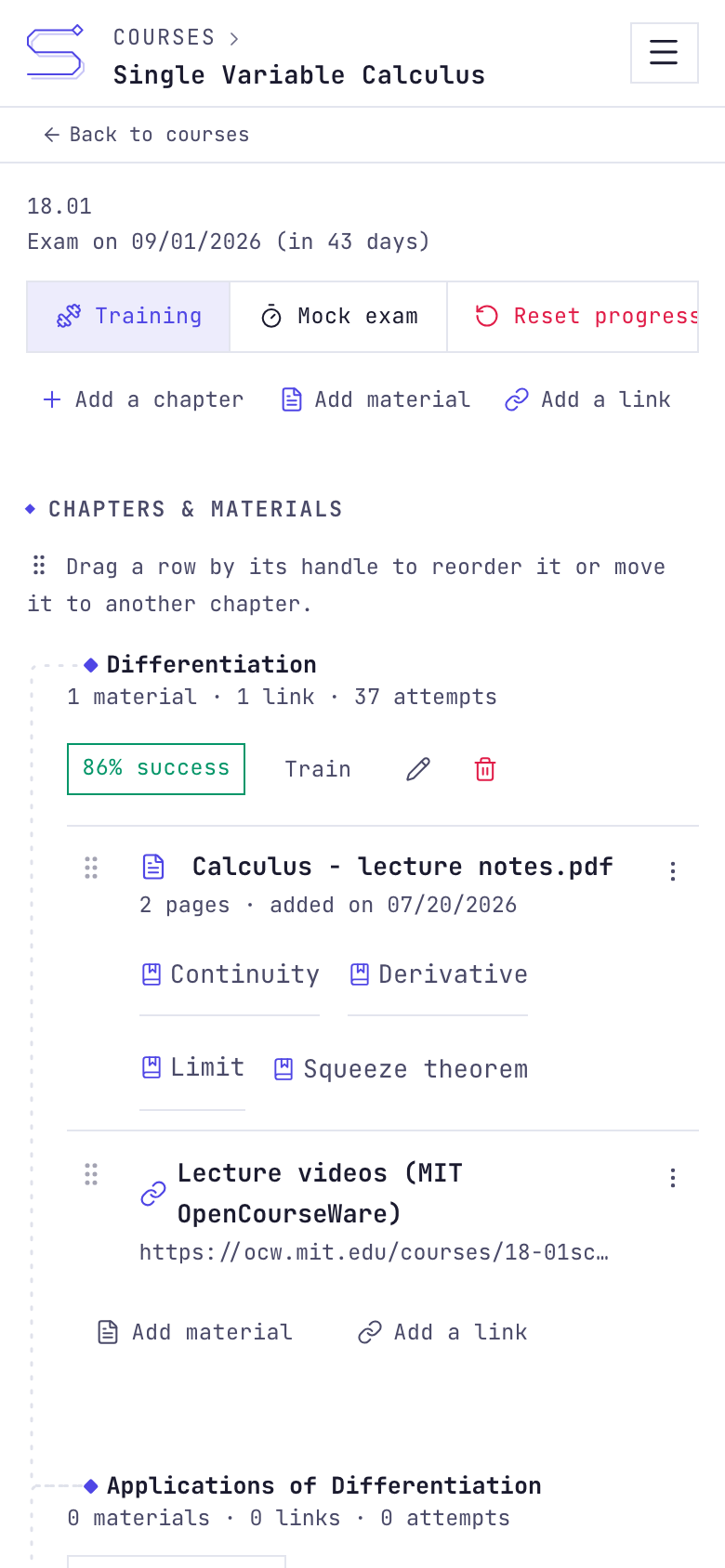
The dashboard lists your courses as cards with their code, name, exam date and study stats: number of materials, exercises, attempts and the success rate so far. Inside a course, content is organized in chapters.
Materials are the documents you upload. PDFs are stored as they are. Office documents (pptx, docx, xlsx and so on) and text formats (md, html, epub, tex and others) are converted to a PDF preview when you add them, either by the server or by the desktop app itself using the converters installed on your machine (see Files beyond PDF).
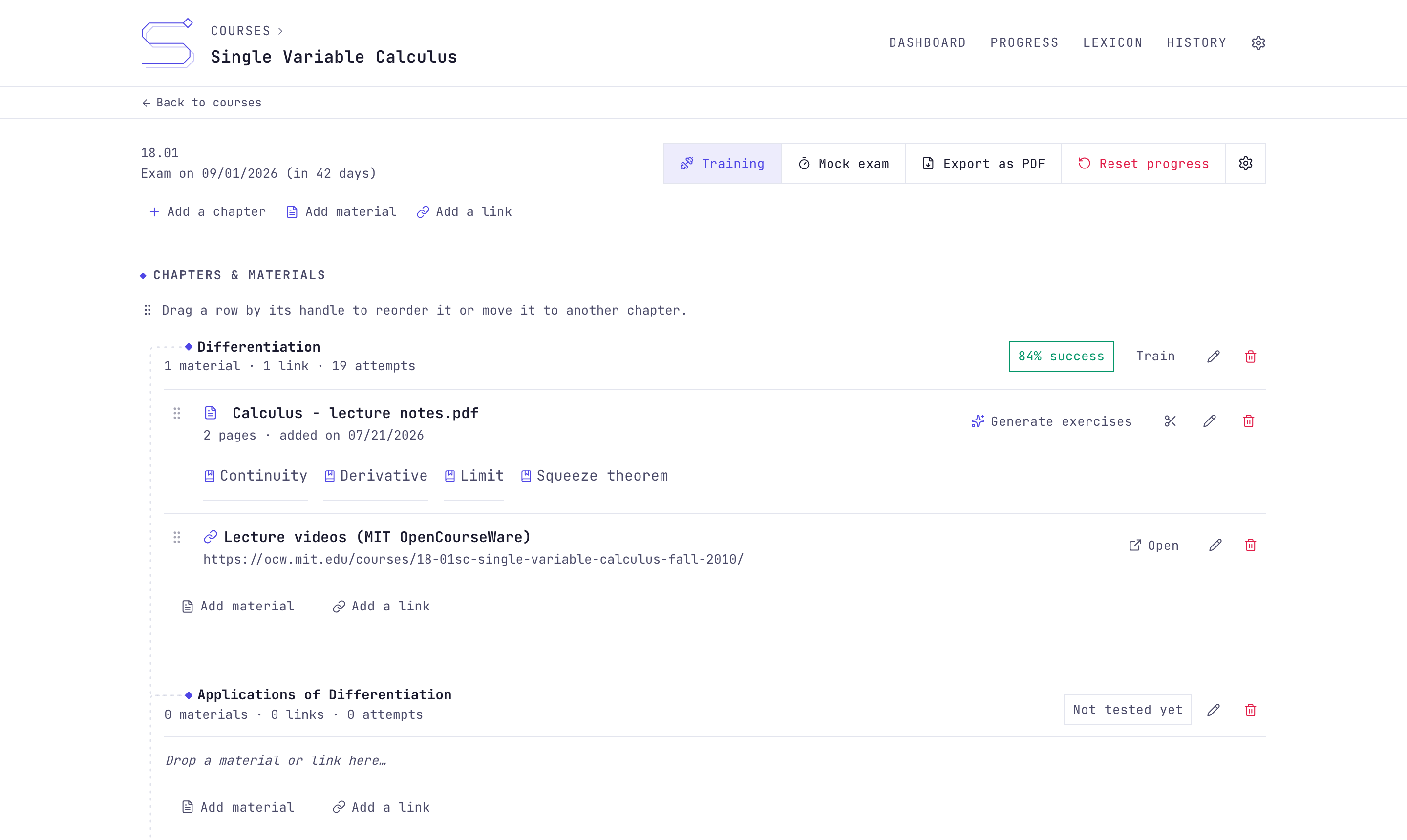
Chapters can also hold links to external resources such as videos or websites. You can add them by hand or drop a URL onto a chapter. Rows can be reordered by dragging, or entirely with the keyboard, within a chapter and across chapters. Files dropped onto a chapter upload straight into it.
When you add a long PDF, a book or a full set of lecture notes, you can split it into chapters instead of keeping it as one file. A wizard shows the pages as a grid with a large preview: mark where each chapter starts, trim any front or back matter to leave out, and each range becomes its own chapter, sliced into its own PDF on the device. Splitting the book this way lets you group other resources alongside each chapter, links, extra documents, generated exercises, and then practice on a single chapter's contents rather than the whole book at once. Nothing is lost by splitting: the course's Export as PDF action puts the book back together as one document later, chapters in order and with your highlights and notes embedded (see Reading and annotating).
Reading and annotating
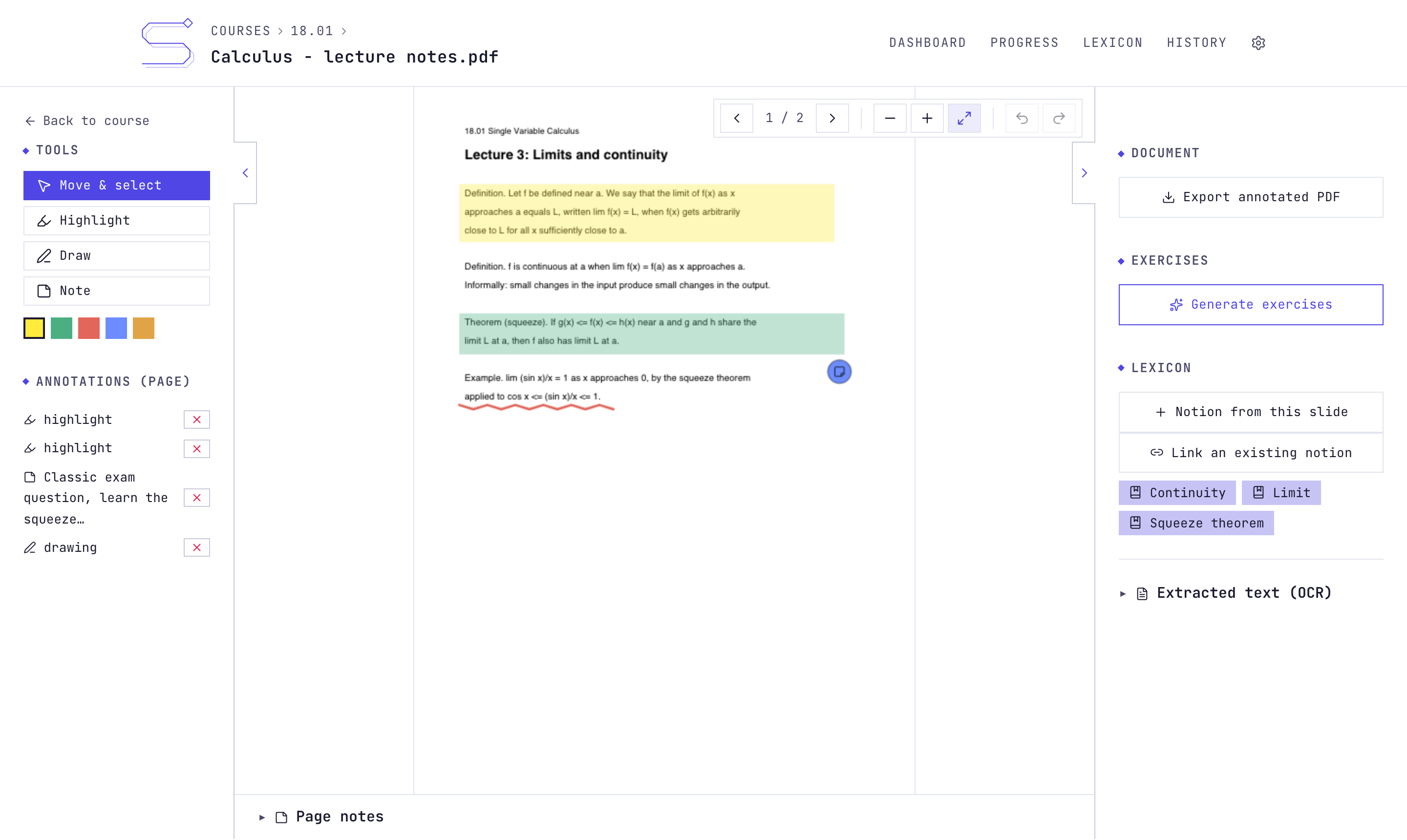
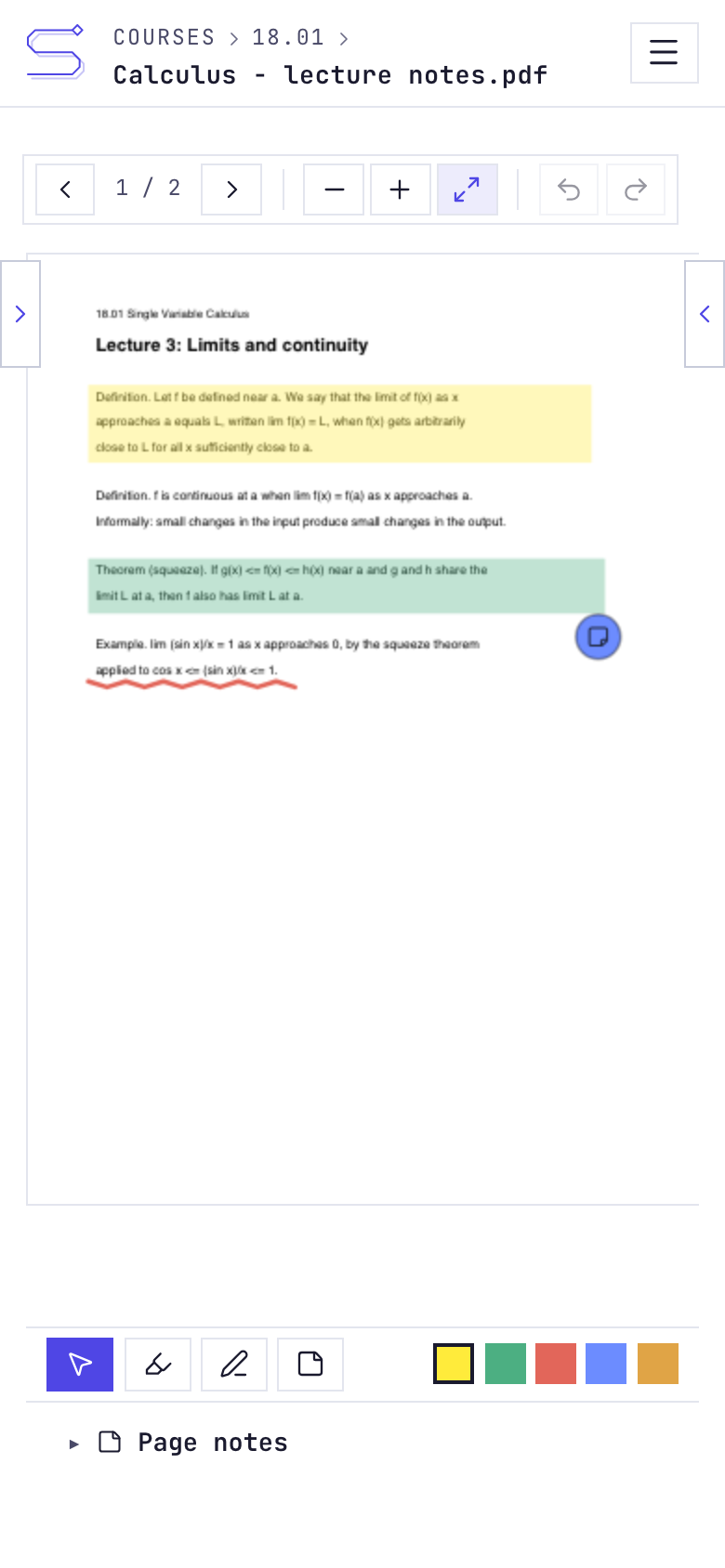
The viewer renders the PDF fitted to the screen, with zoom buttons, ctrl or pinch zoom, and side panels you can collapse. On top of the page you can highlight regions, draw freehand, and pin notes that open in a readable popover. Annotations can be moved, rotated, restacked and recoloured, and every change can be undone and redone. The colour palette is configurable per course.
Each page also has its own rich text note. Typing @ in a note opens a
picker that links to lexicon notions or to other slides, and those links
survive reloads. The text extracted from the document (or its OCR
transcription) is available in a panel next to the page.
You can export the PDF with your annotations embedded as real, editable markup: highlights, freehand drawings and notes stay selectable and can be opened, moved or removed in any reader (Acrobat, PDF Expert, Preview), not flattened into the page. When you export you choose what travels with it, annotations and page notes each on or off. The export happens on the device, so it works offline too.
A course page also has an Export as PDF action that bundles the whole course into one file: every chapter in order, each document with its annotations, a page for each link, a readable section of your page notes after each document, and a titled page before each chapter, which brings a book you split earlier back together as a single PDF. It ends with a lexicon of the course's terms, each linking back to the pages where it appears.
See a sample export of a short annotated course.
Lexicon
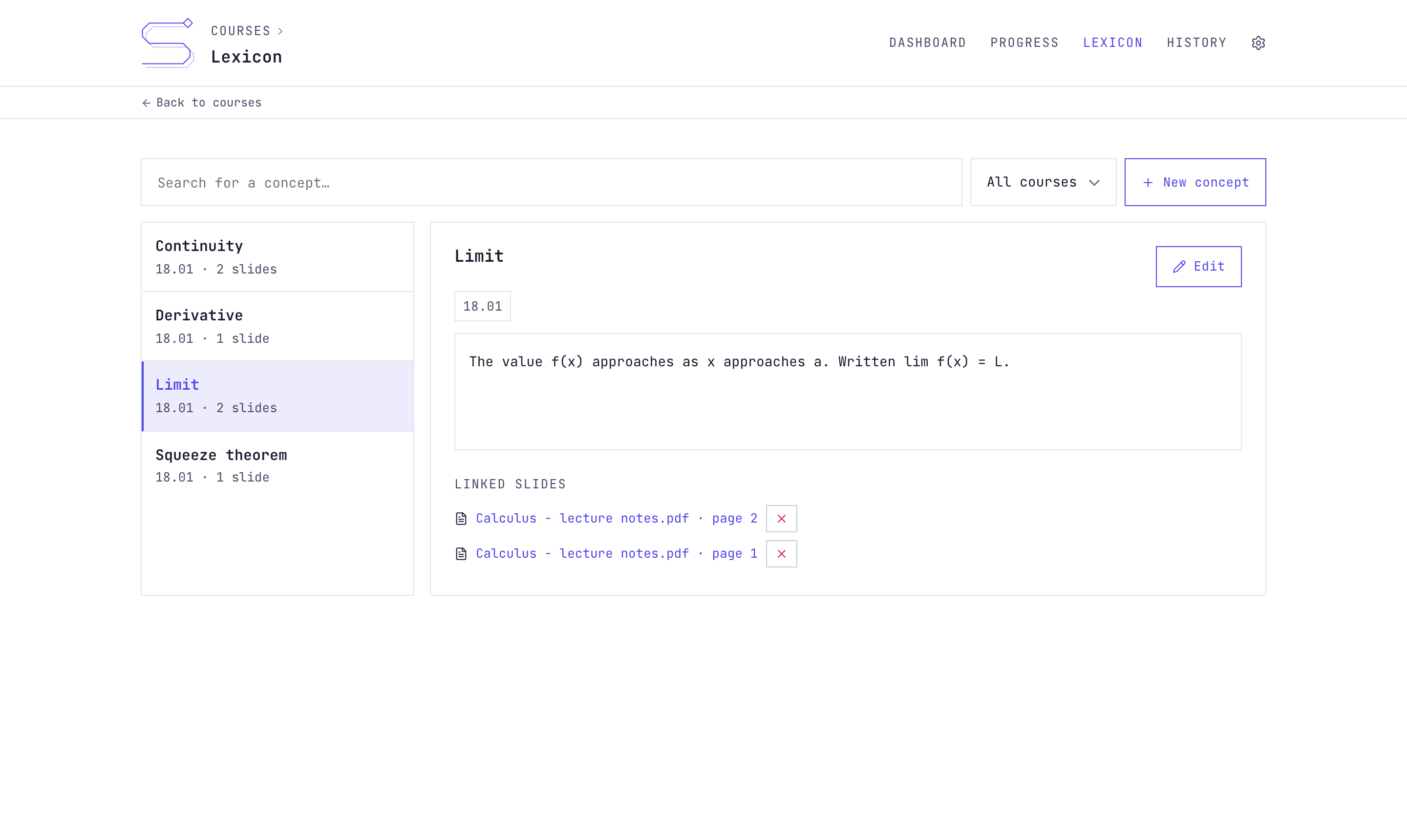
The lexicon is a course-wide glossary. Each entry has a term, a rich text definition and links to the exact slides where the notion appears. The viewer shows the current slide's notions as chips, and lets you create a new notion or link an existing one without leaving the page.
Exercises and progress
Exercise generation takes a document and produces multiple choice, true/false and open questions from its text, each with an explanation. Where the generation runs, on a server, a local model or your own API key, is covered in AI setup.
Practice sessions pick exercises adaptively: questions you have never seen and questions you often miss come up first. Answers are graded on the device. For open questions you compare your answer with the reference and judge yourself.
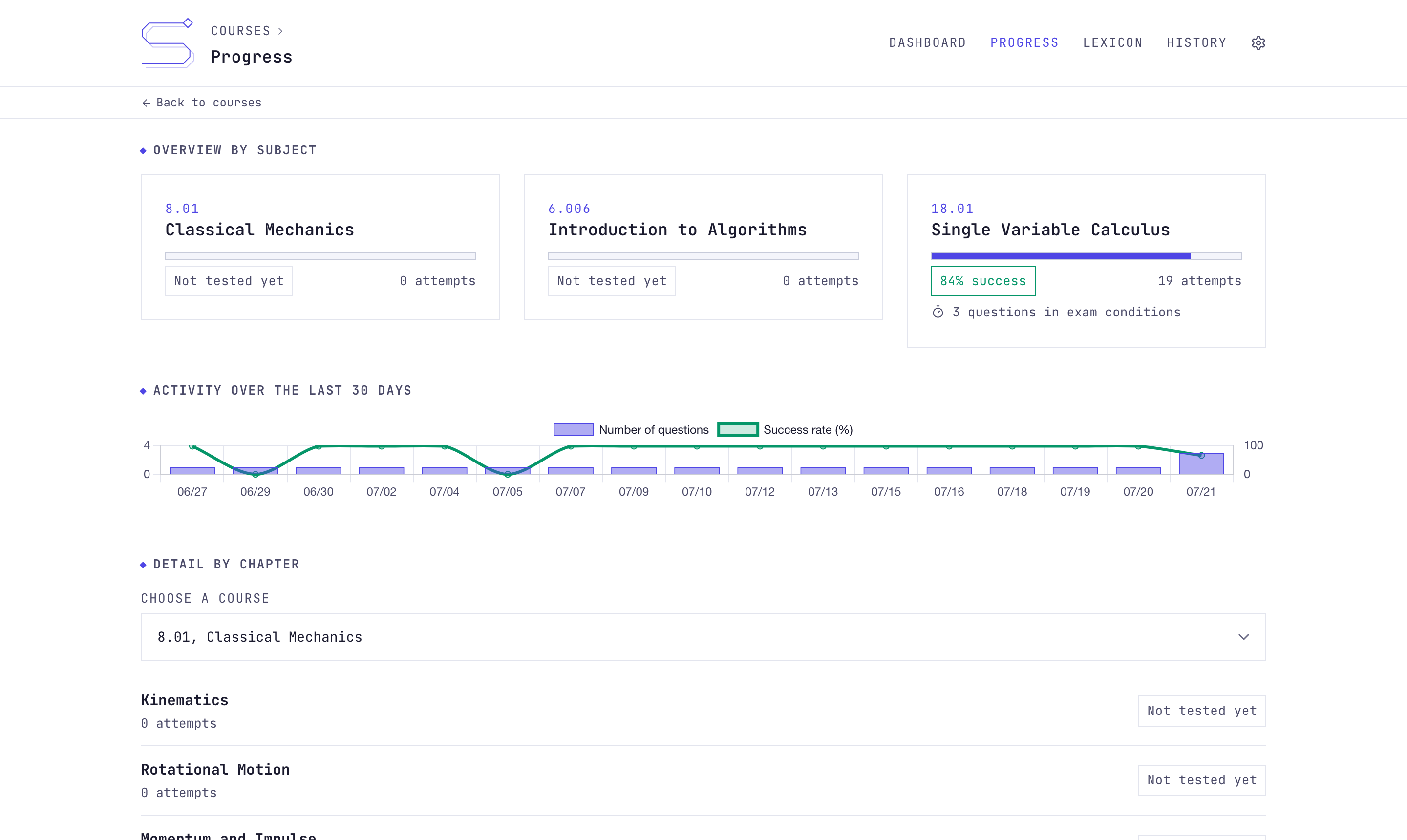
The progress page shows success rates and attempt counts per course and per chapter, along with an activity chart of the last thirty days. All of it is computed from the local attempt log.
Offline and sync
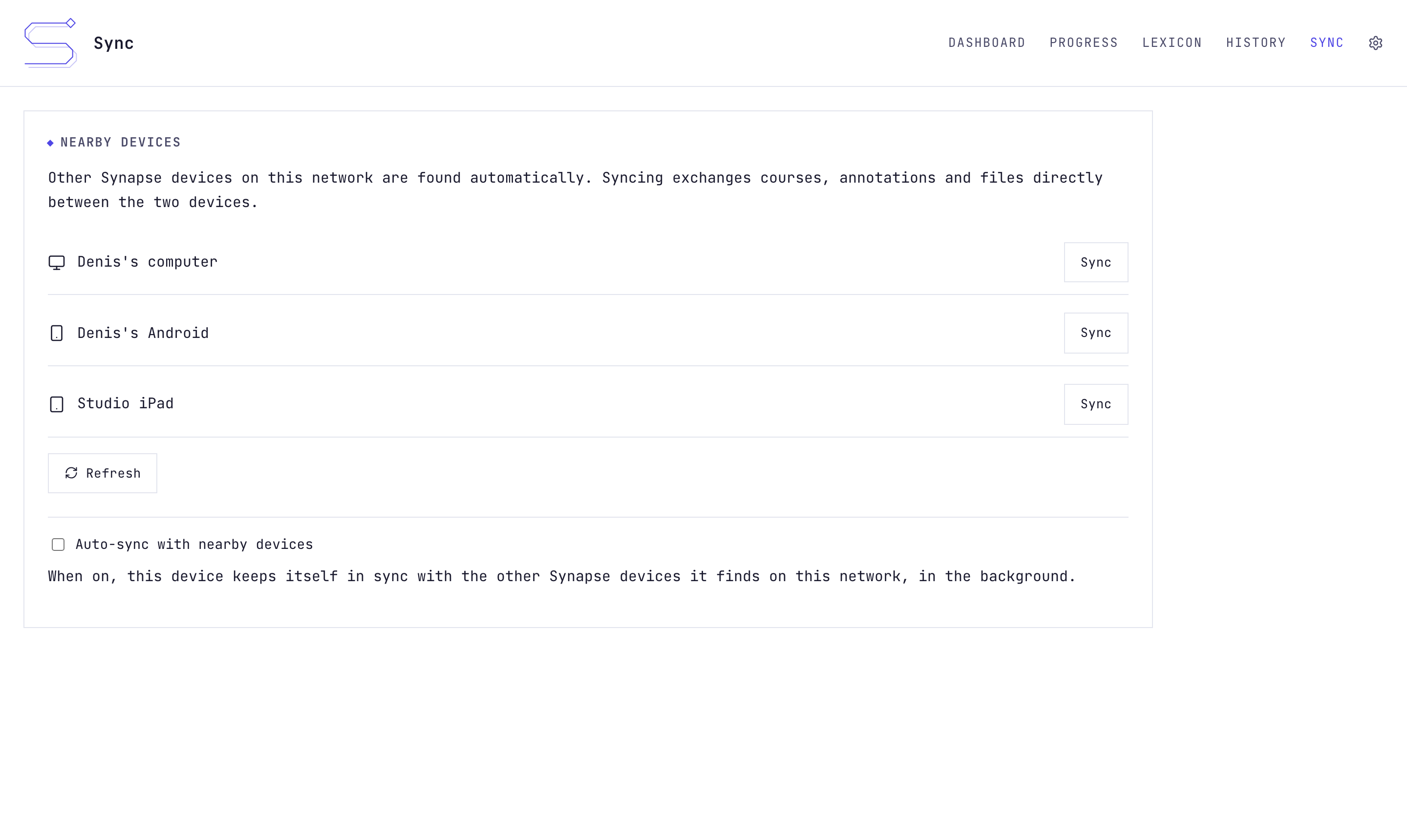
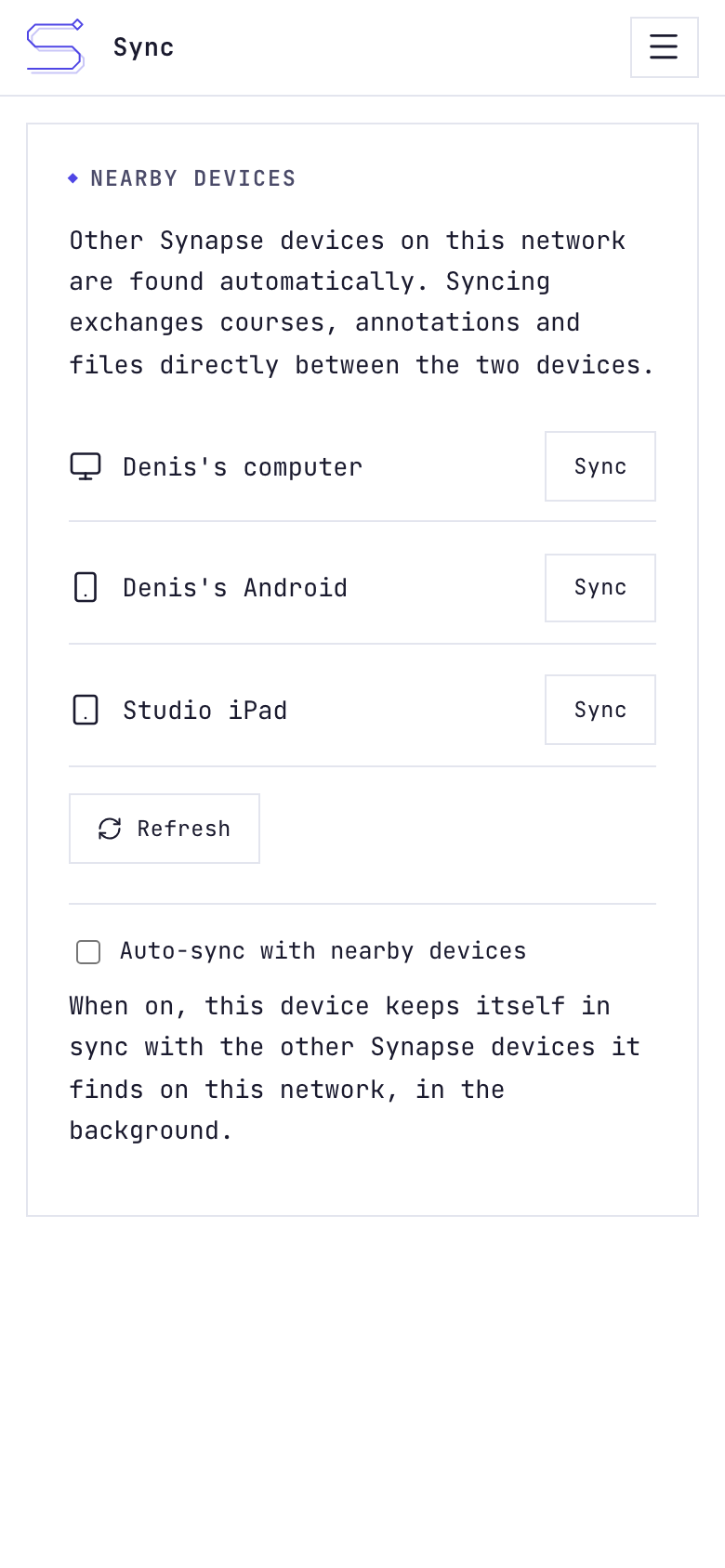
The workspace lives on the device, so there is no separate offline mode; working offline is the normal case. When you use several devices, they converge through a server, a local network connection or a file, as described in Syncing devices. The same page covers the one-file backup of the whole workspace.
History
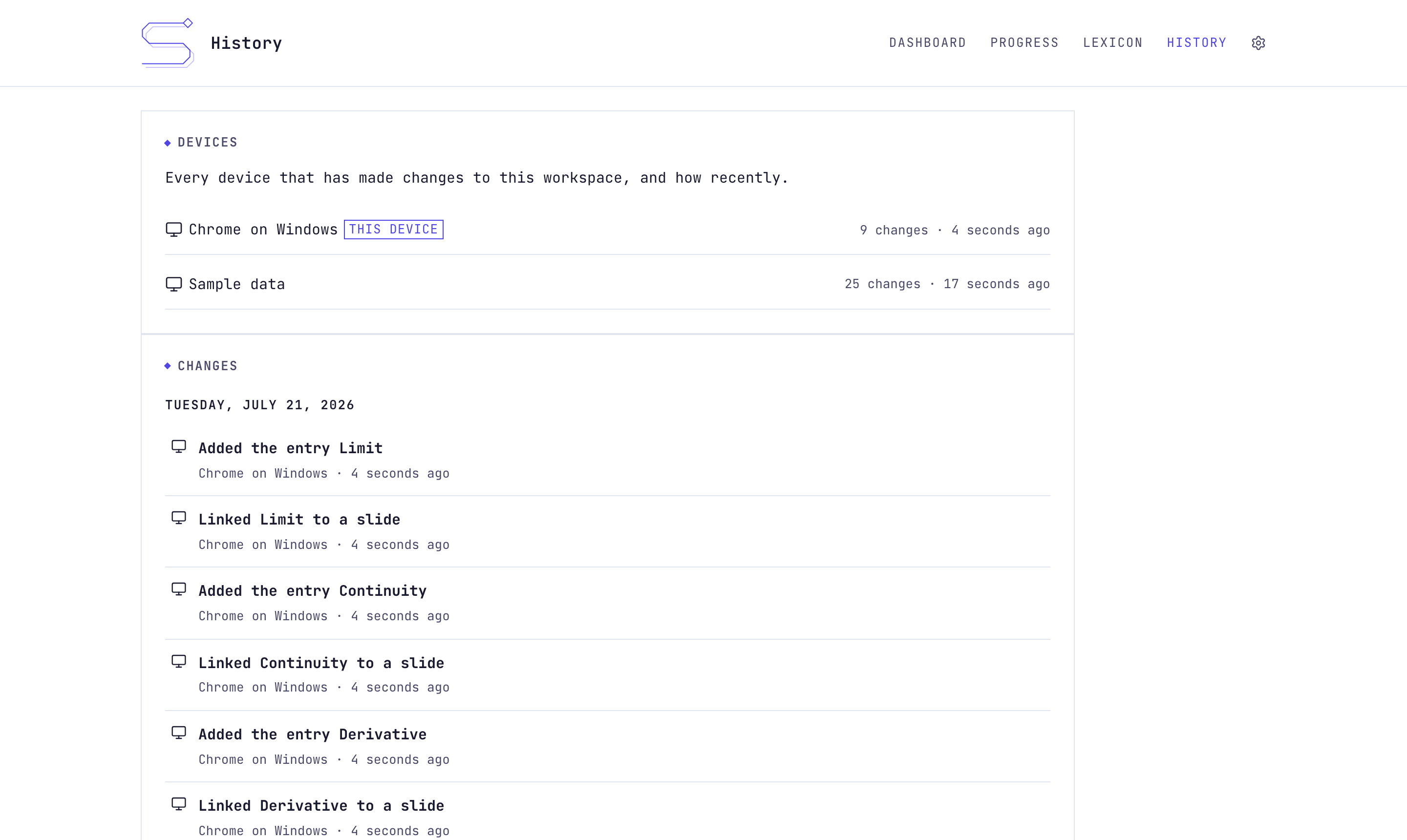
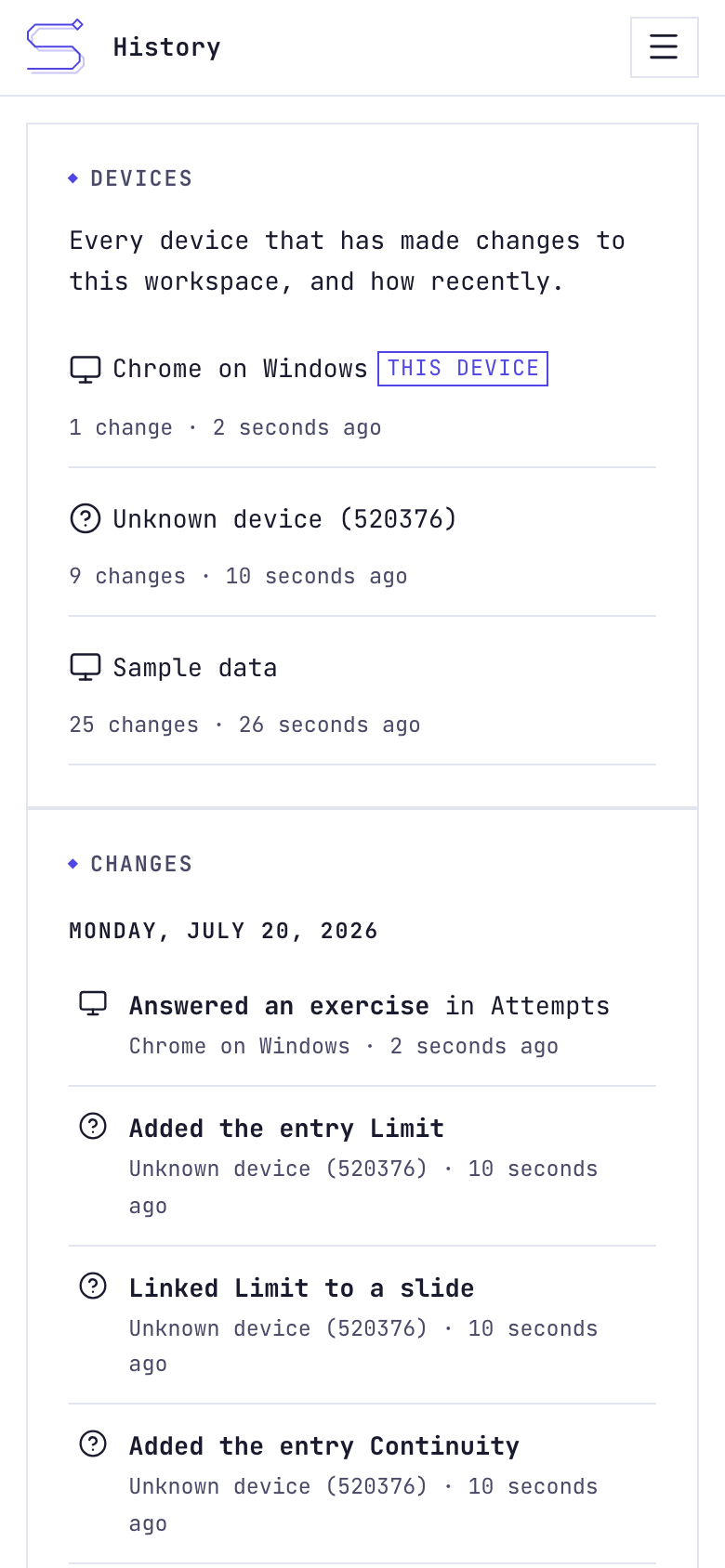
The History page, opened from the top bar, is a timeline of what changed in the workspace, drawn from the CRDT's own change log. Each entry reads in plain language ("Created the course Physique quantique", "Added a highlight on slide 3", "Renamed the chapter Mechanics", "Moved Lecture 3 to position 2") and shows when it happened and which device made it. A summary at the top lists every device that has touched this workspace and how recently, with the current one marked. Entries name the device by its hostname (or "Native app on ..." for a mobile or desktop shell), and changes made before a device joined show up under it once its edits arrive over sync.
Expand an entry to see its field-level detail. Two actions sit there: Preview this version opens the whole app, read-only, at that moment, with a banner offering a return to the current state; Restore this version brings the workspace and its annotations back to that point as a new change, after listing what it will undo. Exercise attempts are always kept.
On your phone
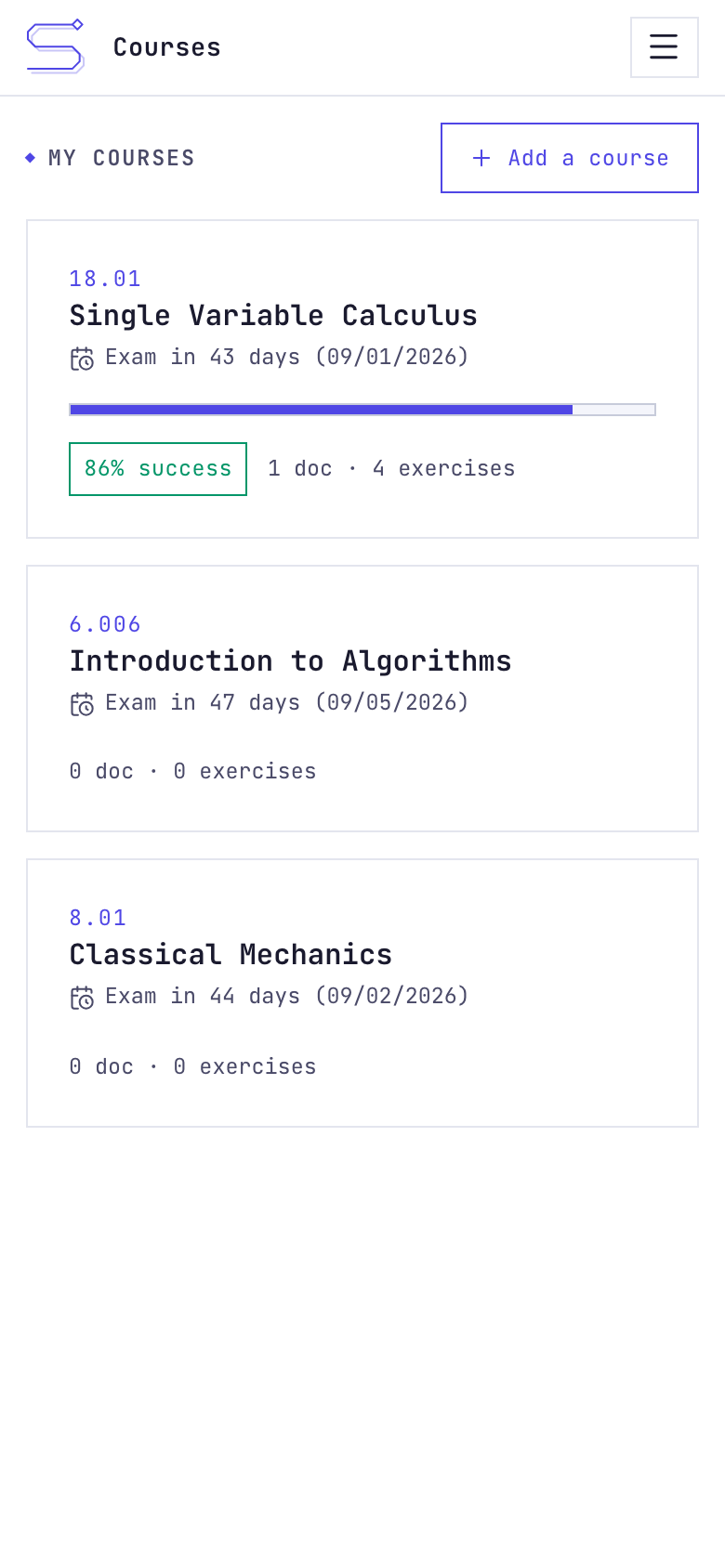
The same app on a phone.
Languages, themes, accessibility
The app speaks English, French and Brazilian Portuguese, and ships six colour themes. The interface uses semantic markup and is checked against WCAG 2.1/2.2 A and AA.